
Host Calendar Guide
Managing your calendar effectively can help you build trust with guests, save time, and increase your earnings. Let's take a look at how to get started.
1. Calendar Structure
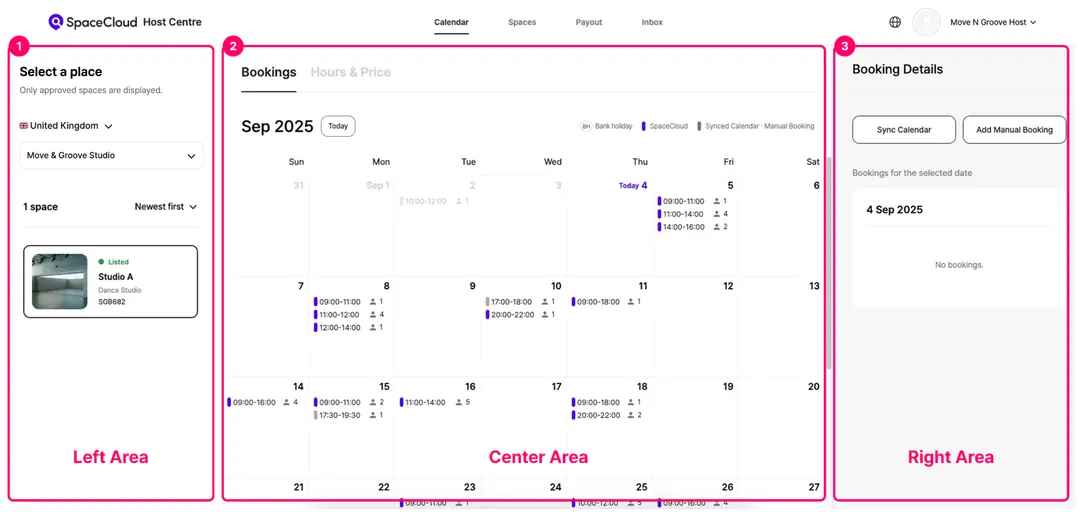
The SpaceCloud host calendar has three main areas:
1) Left Area
Select the country, place, and specific space you want to manage from this section.
2) Center Area
View the booking status and pricing for the selected space.
- Bookings Tab: See all bookings by date, including SpaceCloud reservations, synced external calendars, and manual entries.
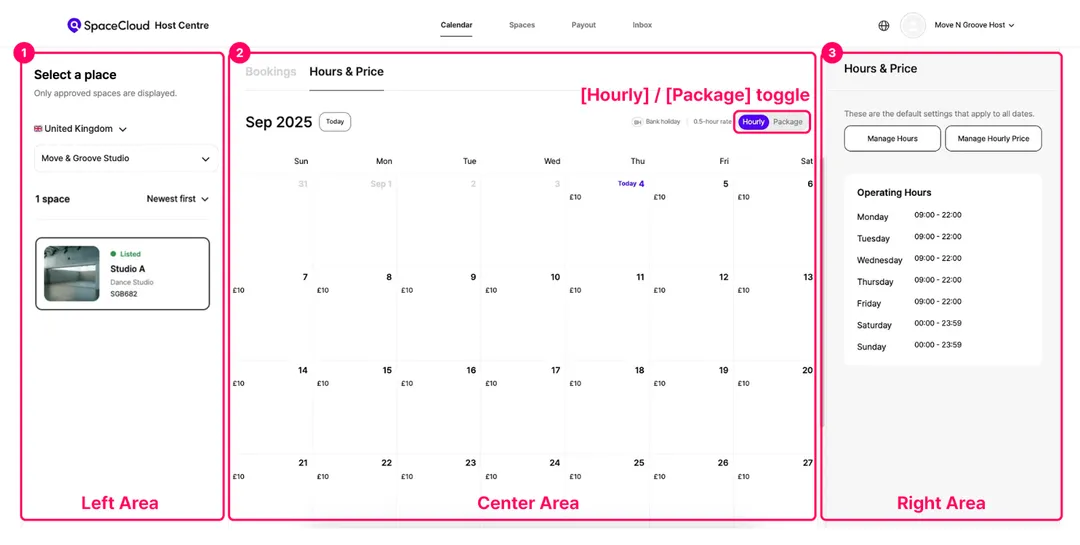
- Hours & Price Tab: View your pricing by date. Use the [Hourly] / [Package] toggle in the top right to switch between rate types
3) Right Area
This area is where you manage detailed settings for each tab.
Clicking on a specific date, booking, or price in the calendar will show you more detailed information.
- Bookings Tab: Use this to [Sync Calendar] or [Add Manual Booking].
- Hours & Price Tab: Use this to set your [Operating Hours], [Manage Hours], and [Manage Package].
2. How to Manage Bookings on the Calendar
1) Booking Colours
On the [Bookings] tab, different booking types are shown in distinct colors:
- Purple for SpaceCloud bookings.
- Grey for external or synced bookings.
For SpaceCloud bookings, you can click on an entry to approve or cancel a pending request, or to view a confirmed booking.
2) Adding Manual Bookings
If you need to block off time for personal reasons or for bookings made outside of SpaceCloud, use the [Add Manual Bookings] feature. This allows you to set a specific day or time as unavailable on your calendar.
3) Calendar Sync
If you receive bookings from multiple channels, preventing double bookings is important. The [Sync Calendar] feature allows you to sync and import bookings from external calendars, such as Google Calendar.
Calendar Sync Guide (link)
3. How to Set Operating Hours and Pricing
You can manage your operating hours and pricing from the [Hours & Price] tab. The settings you chose in Step 3 when you first listed your space can also be changed here.
1) Set Operating Hours
In the centre area of your calendar, select [Hourly] as the price unit. Then click the [Manage Hours] button on the right.
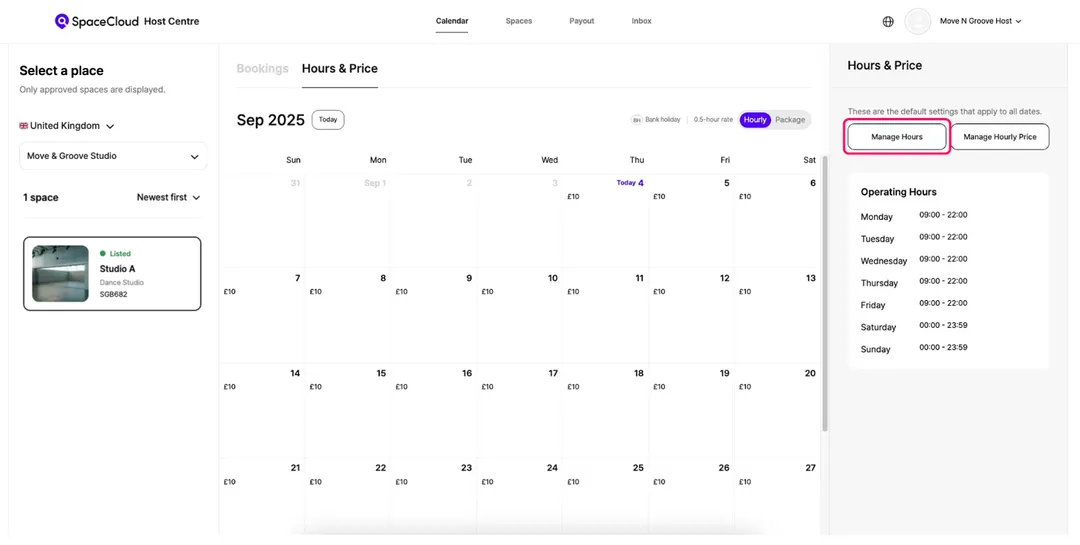
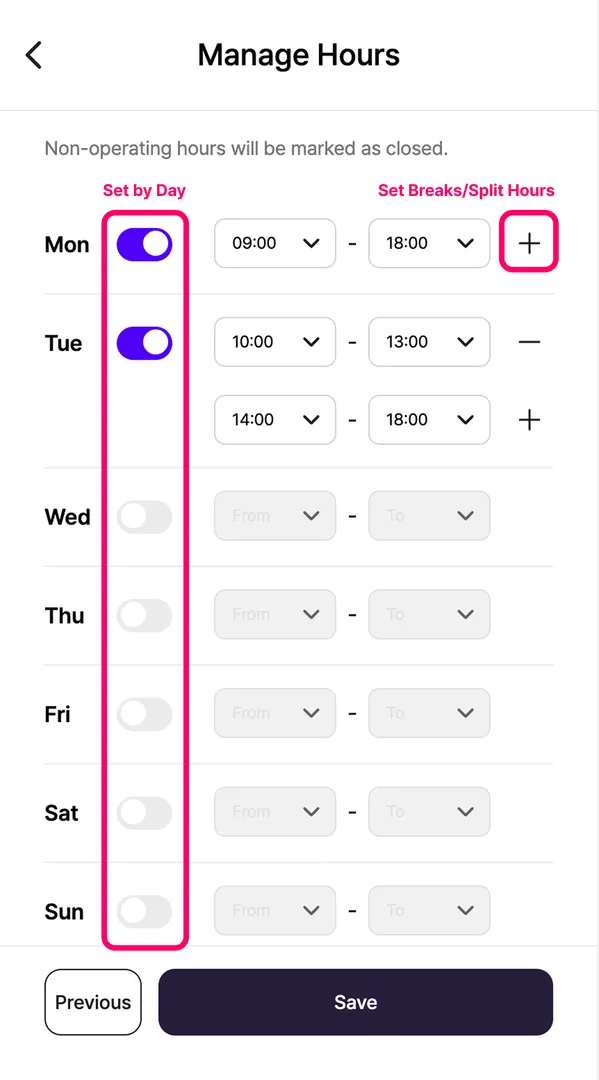
? How to Set Up
Set by Day: Turn on the toggle for the days you operate and set your opening and closing hours.
Breaks/Split Hours: If you need a break during the day, click the + button to split the hours into multiple segments.
Example:
Weekdays: 10:00 AM to 1:00 PM, 2:00 PM to 6:00 PM
Weekends: Closed
2) Setting Up Hourly Prices
When you set an hourly rate, guests can book your space in 30-minute increments.
In the center of the calendar, select [Hourly] as the price unit. Then click [Manage Hourly Price] on the right.
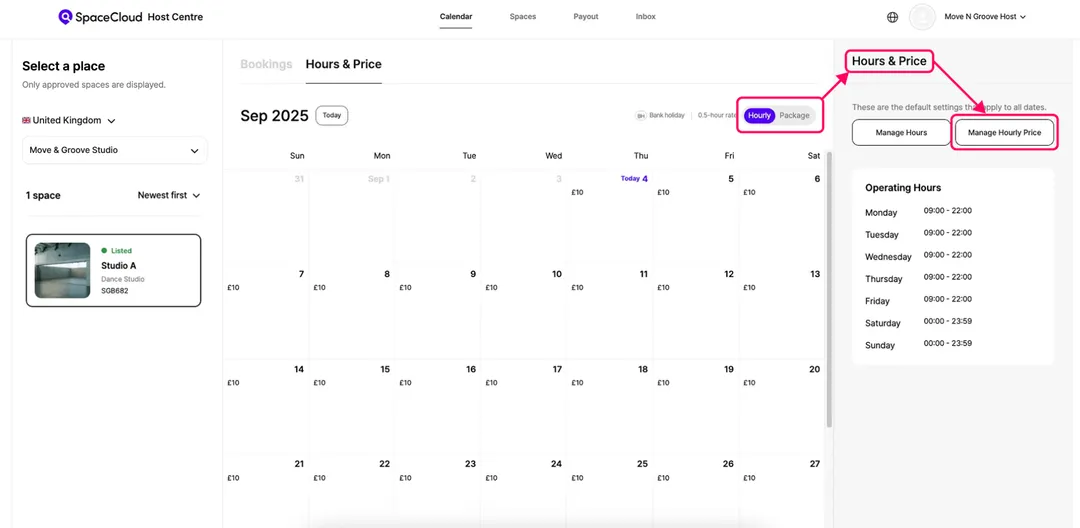
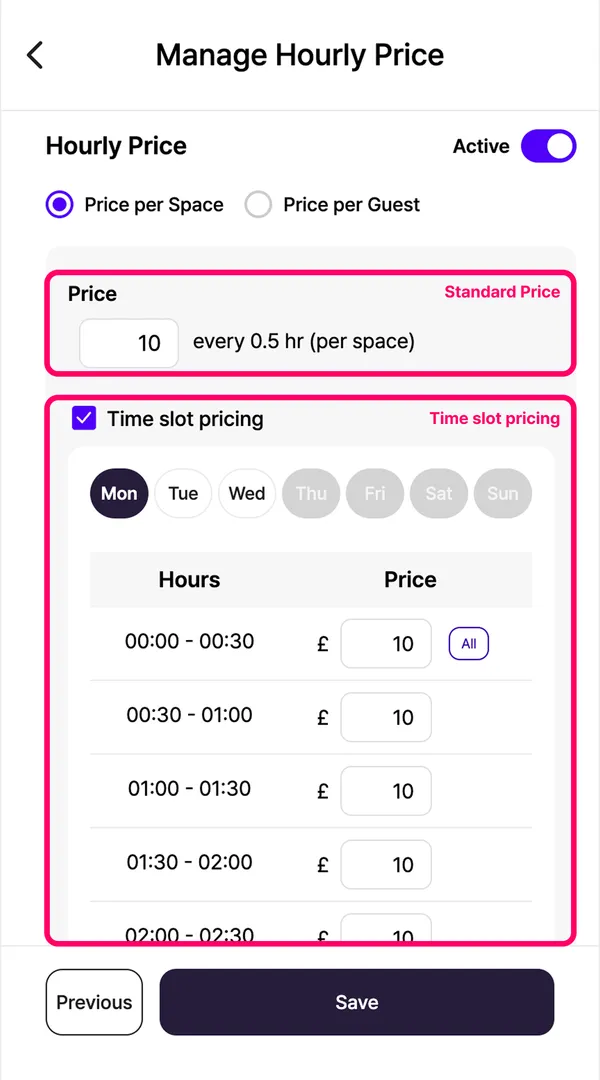
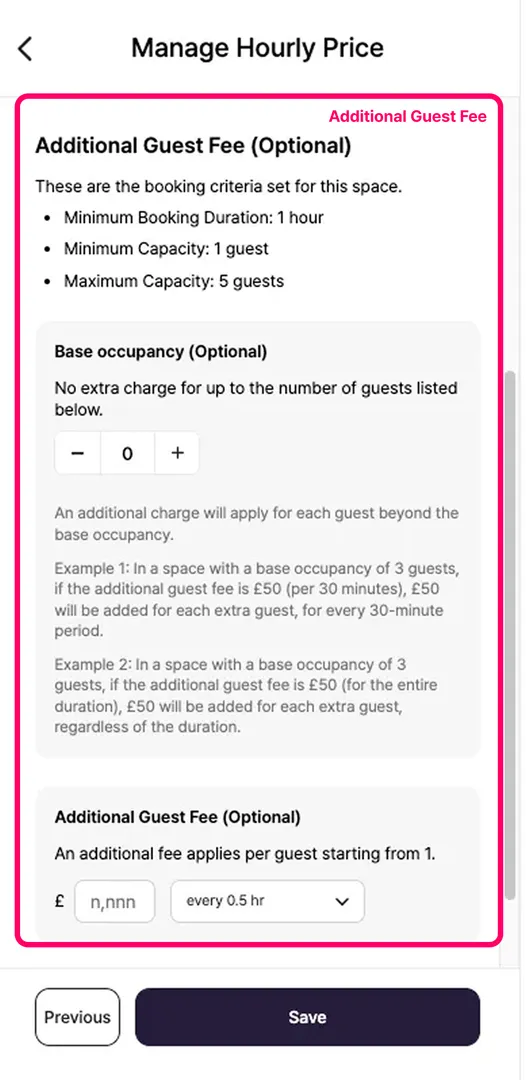
? How to Set Up
Standard Price: Set a representative price based on a 30-minute period.
Time slot pricing: If your prices vary by day or time, check the box to enter custom rates.
Additional Guest Fee: You can set an extra fee per guest, either for every 30 minutes or for the total hire time.
3) Setting up Packages
When you set a package rate, guests can book your space in N-hour packages.
To set up packages, select [Package] as the calendar's price unit, then click [Manage Package].
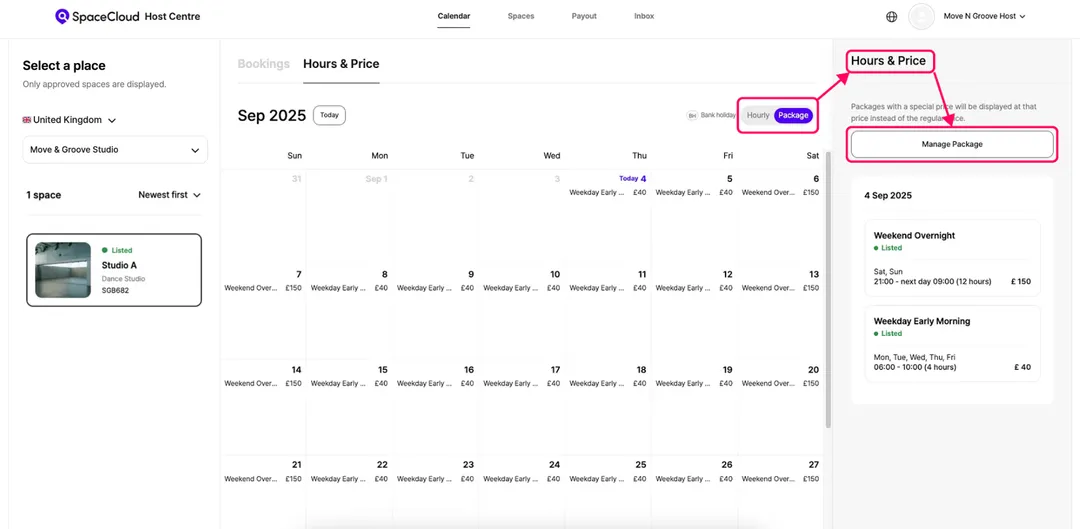
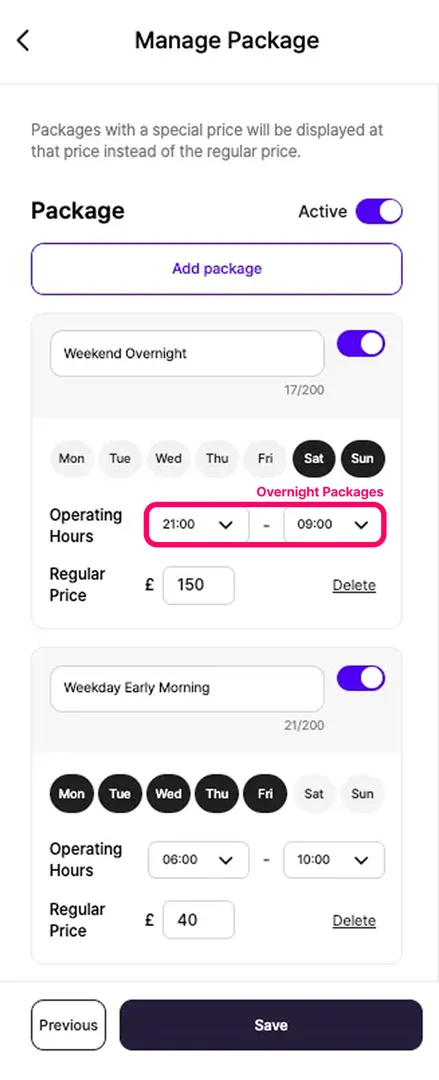
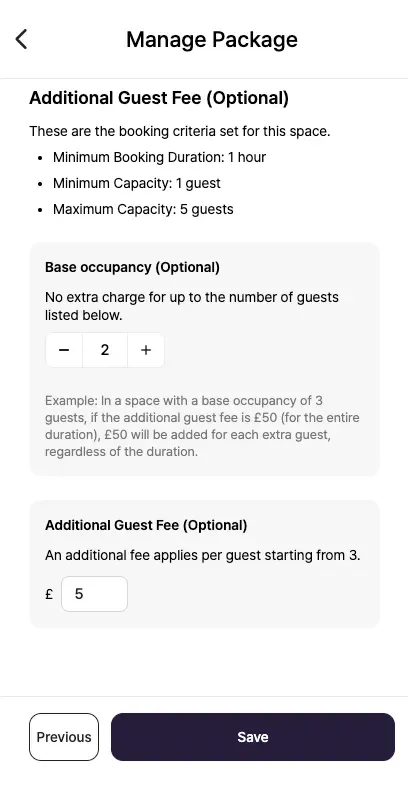
? How to set up
Package Hours: You can set package hours separately from your operating hours, up to a 12-hour maximum.
Example: You can create a package from 9:00 AM to midnight, even if your standard operating hours are 9:00 AM to 6:00 PM.
Overnight Packages: To create a package that extends into the next day, your space must operate 24 hours a day, and the following day cannot be a day off.
Example: A package can run from 10:00 PM on Monday until 10:00 AM on Tuesday, provided that Monday's operating hours are 24/7 and Tuesday is not a rest day.
Additional Guest Fee: You can set an additional fee per guest for the entire package duration.