
1. Why Do I Need to Sync My Calendar?
Syncing your external calendar with your SpaceCloud calendar prevents double bookings and lets you manage all your schedules in one place. For example, an event added to your Google Calendar will automatically block that time on your SpaceCloud calendar.
2. How to Sync External Calendar
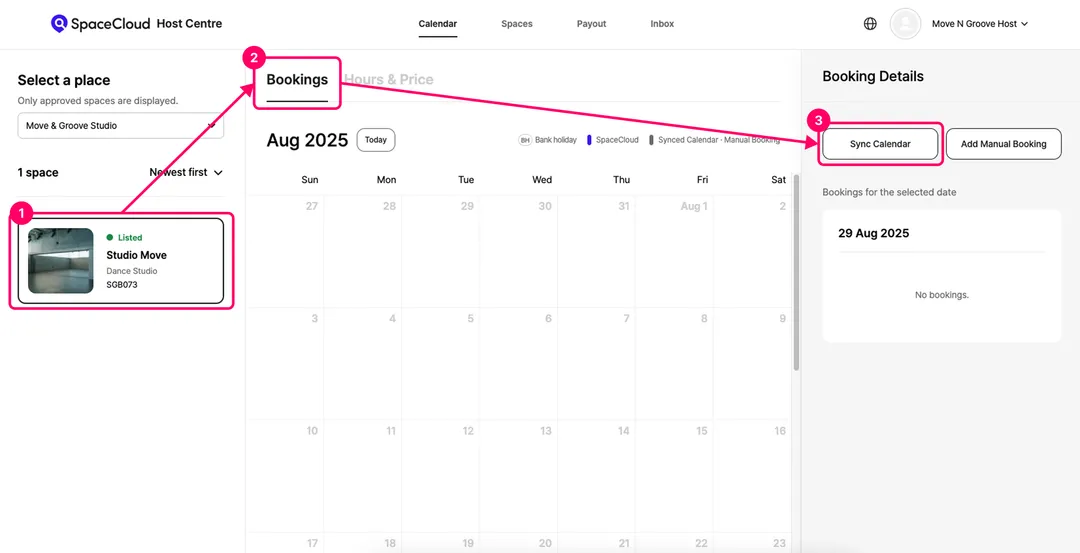
1) In the Calendar [Booking Details] page, click [Sync Calendar].
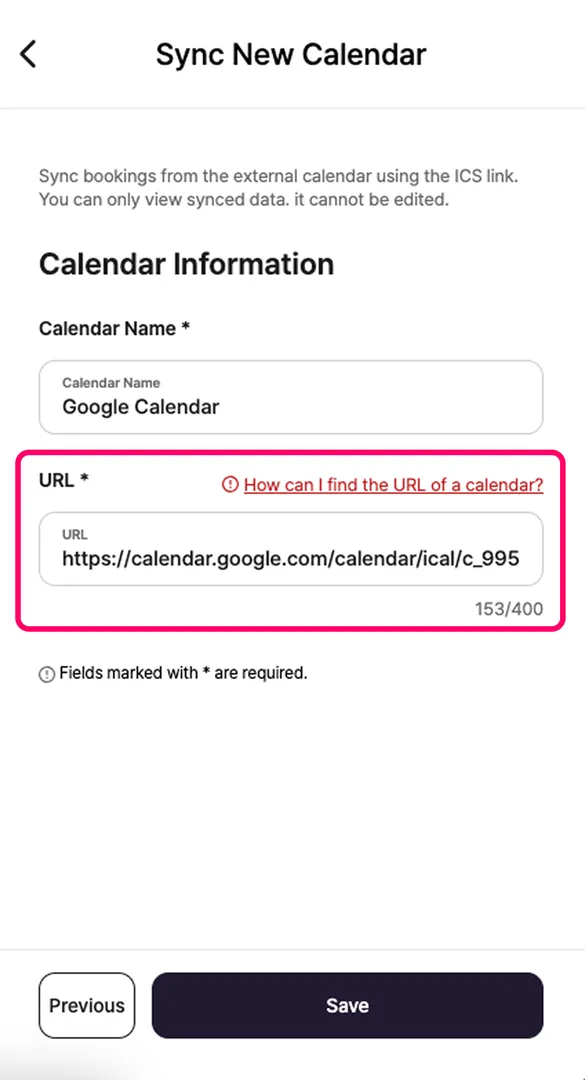
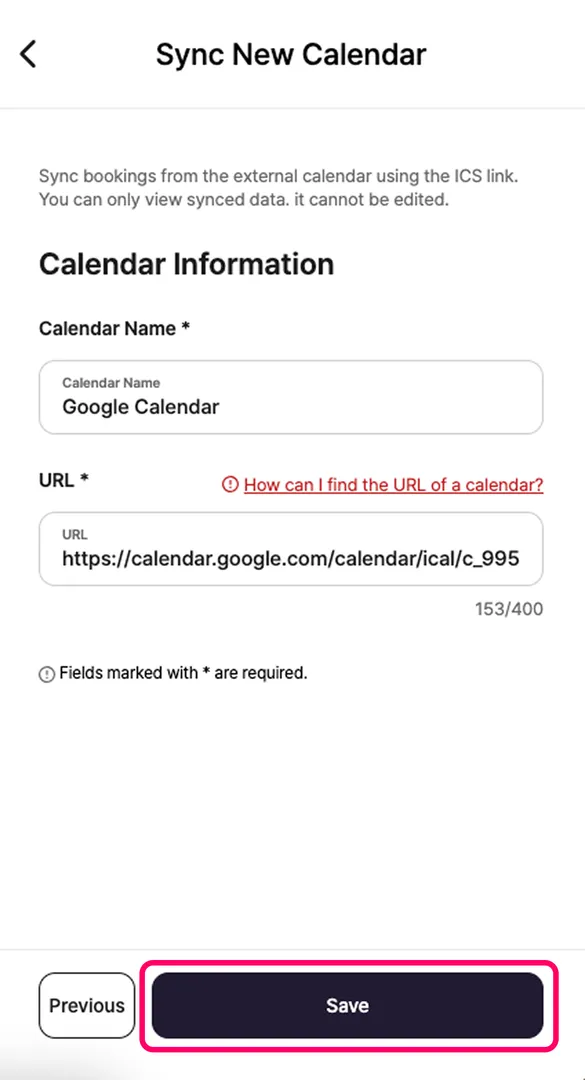
2) Enter the calendar name and the iCal URL, then click [Save].
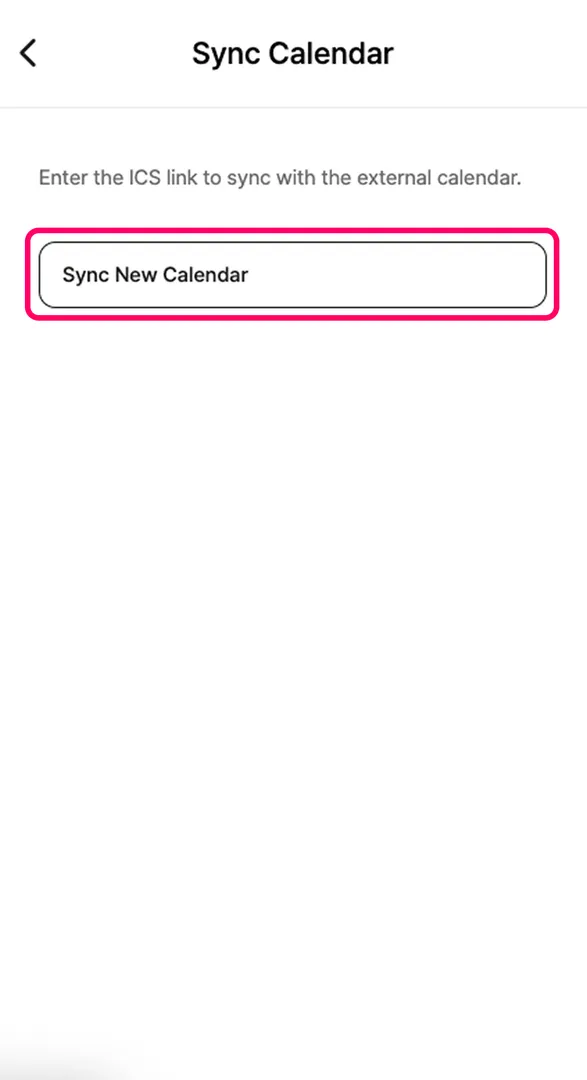
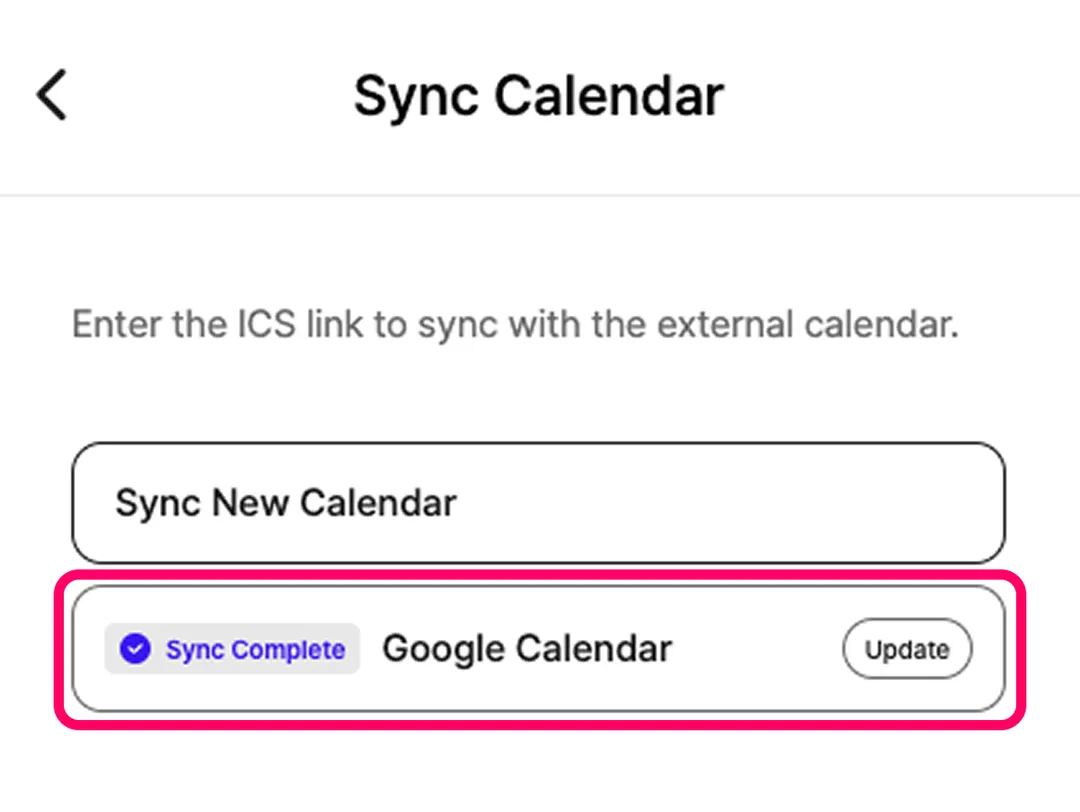
3) Once synced, the status will be updated to [Sync Complete]. Calendars automatically sync every 15 minutes. Only bookings from the past 3 months to the next 3 months will be synced.
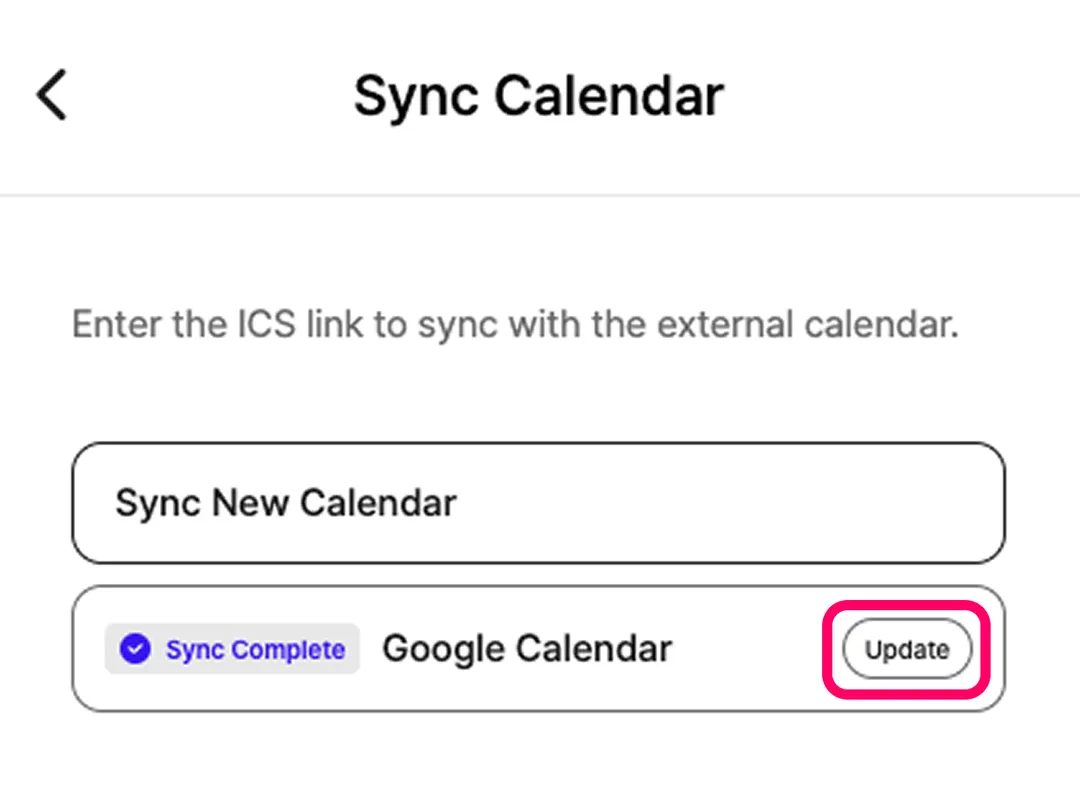
4) To sync immediately, click [Update].
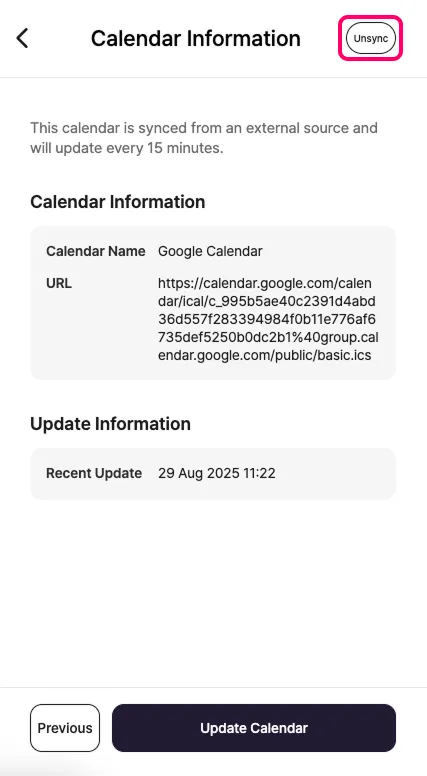
5) To unsync a calendar, go to the [Booking Details] page, click the [Sync Calendar] tab, and then click the [Unsync] button in the top-right corner of the calendar you wish to unsync.
Unsyncing your calendar will not remove existing bookings from your SpaceCloud calendar, but new changes from your external calendar will no longer be reflected.
3. Finding Your Google Calendar iCal Link
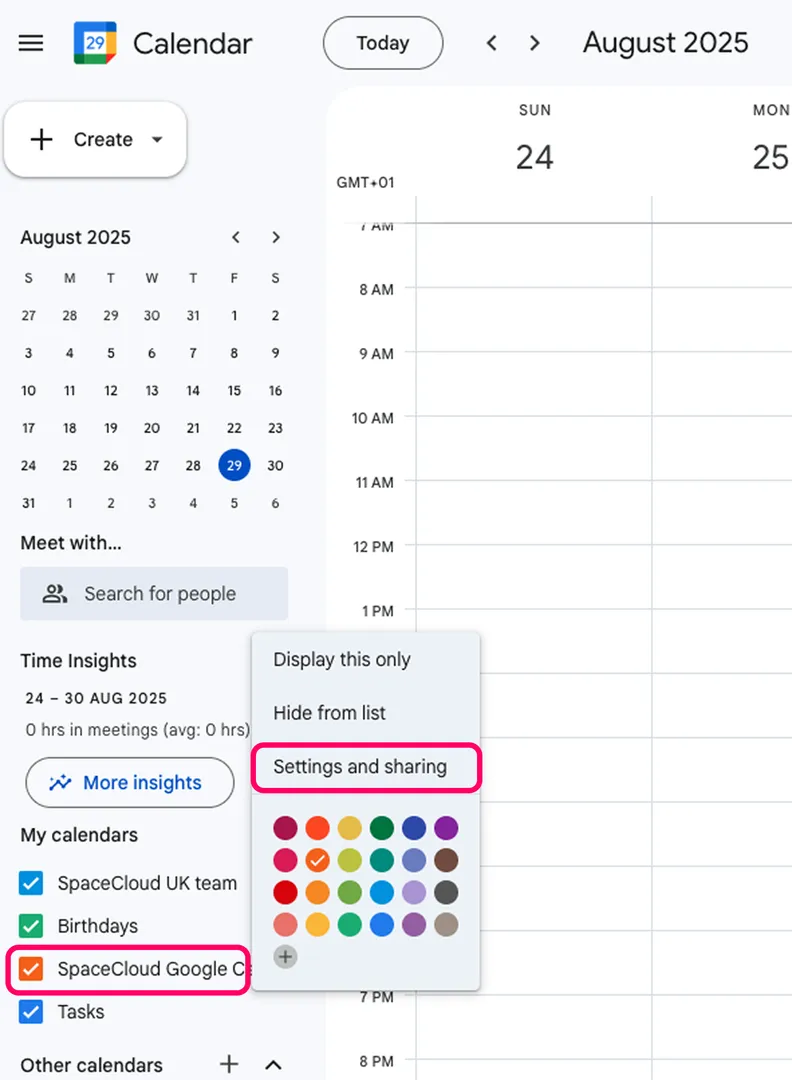
1) Go to Google Calendar (on a PC web browser).
2) On the left, hover over the calendar to sync, click the three dots (⋮), and select "Settings and sharing."
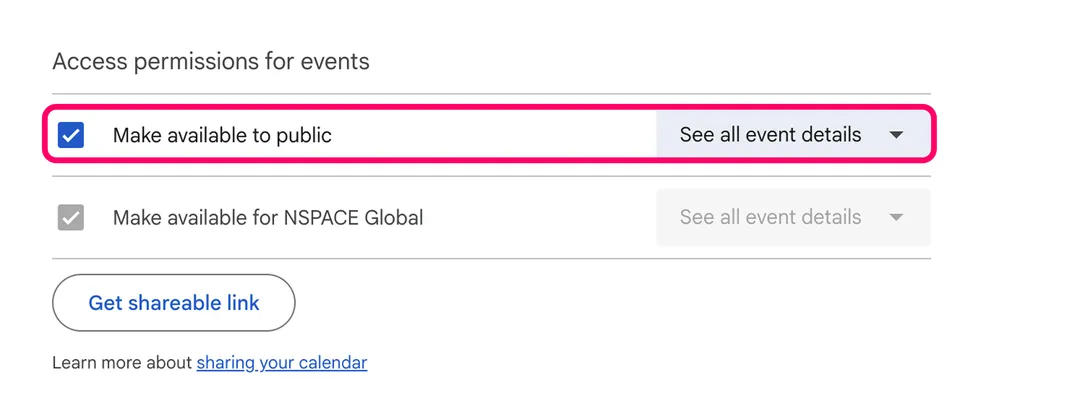
3) Under "Access permissions for events", turn on "Make available to public."
4) Scroll down to the "Public address in iCal format" section and copy the link provided.
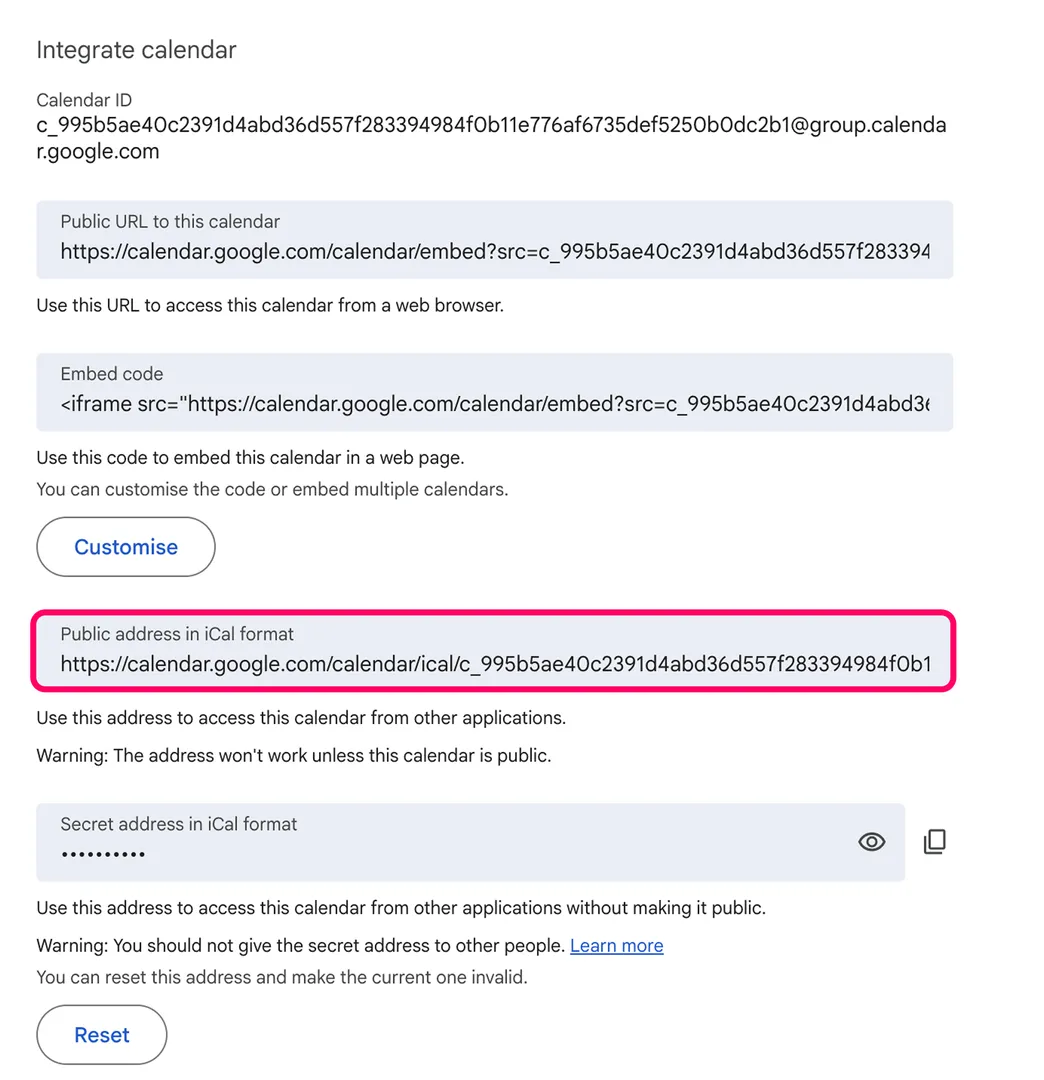
5) Finally, paste this link into the calendar URL field on SpaceCloud.